
Accessing the Batch Calls Feature
- Log in to your Ordibl Dashboard
- Navigate to the “Batch Calls” section in the main menu
- This will open the outbound calling management interface
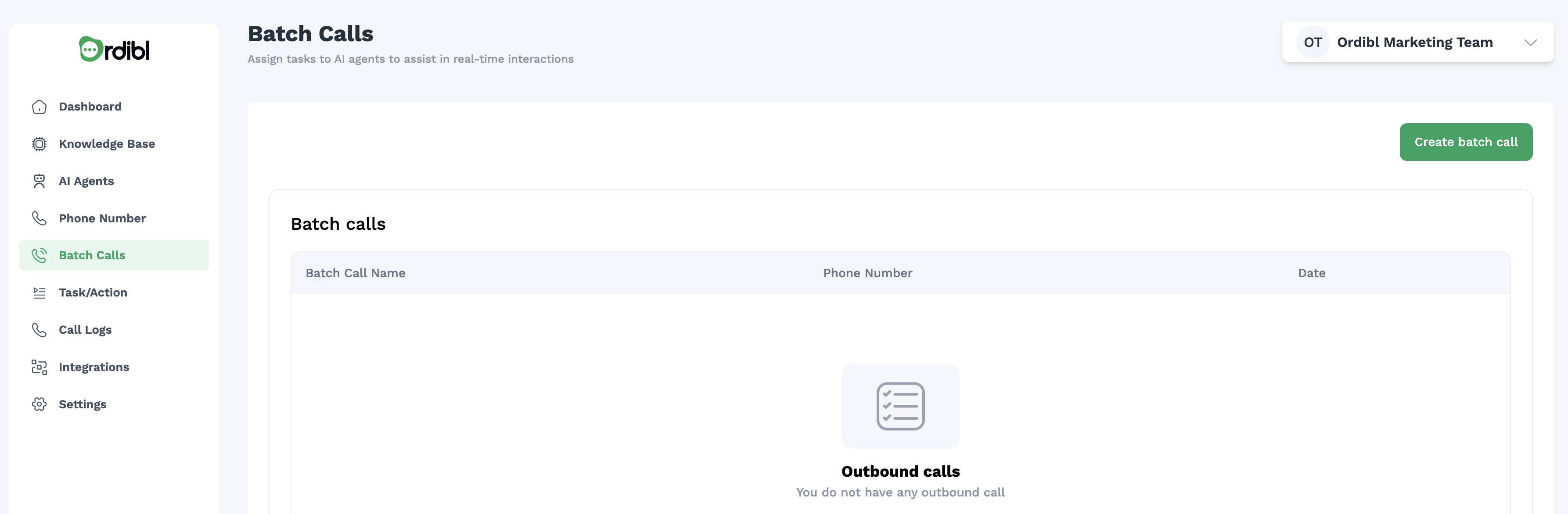
Ordibl Batch Calls
- AI Agent: You need to have an Outbound AI agent configured with a voice profile and conversation script.
- Phone Number: You need to have a phone number assigned to your AI agent for making outbound calls.
Creating a New Outbound Call Agent
- Click on the “Create New Batch Call” button
- Enter a descriptive name for your outbound call agent/campaign
- Select the AI voice profile you wish to use for these calls
Ordibl Batch Calls
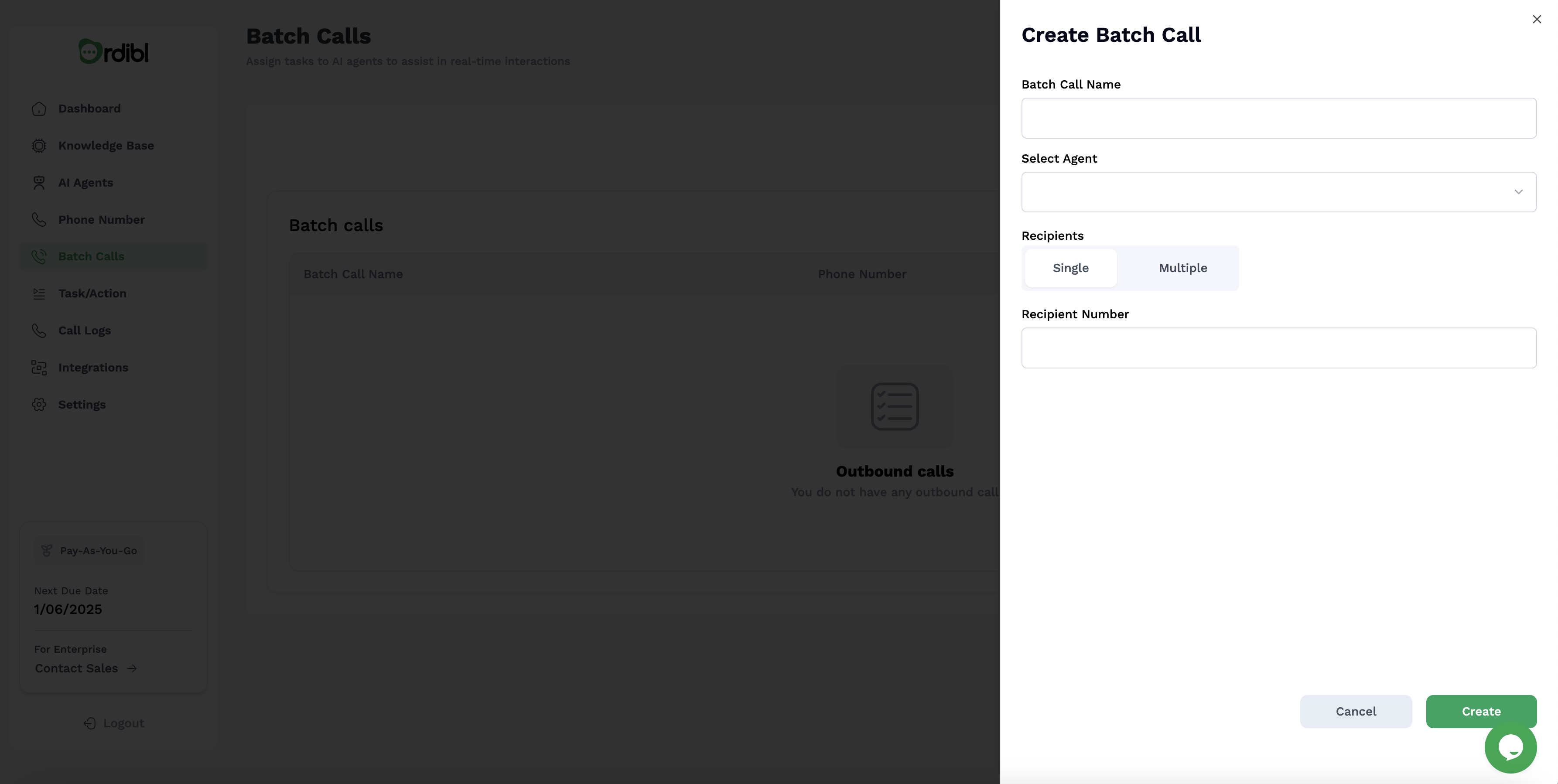
Single Batch Number
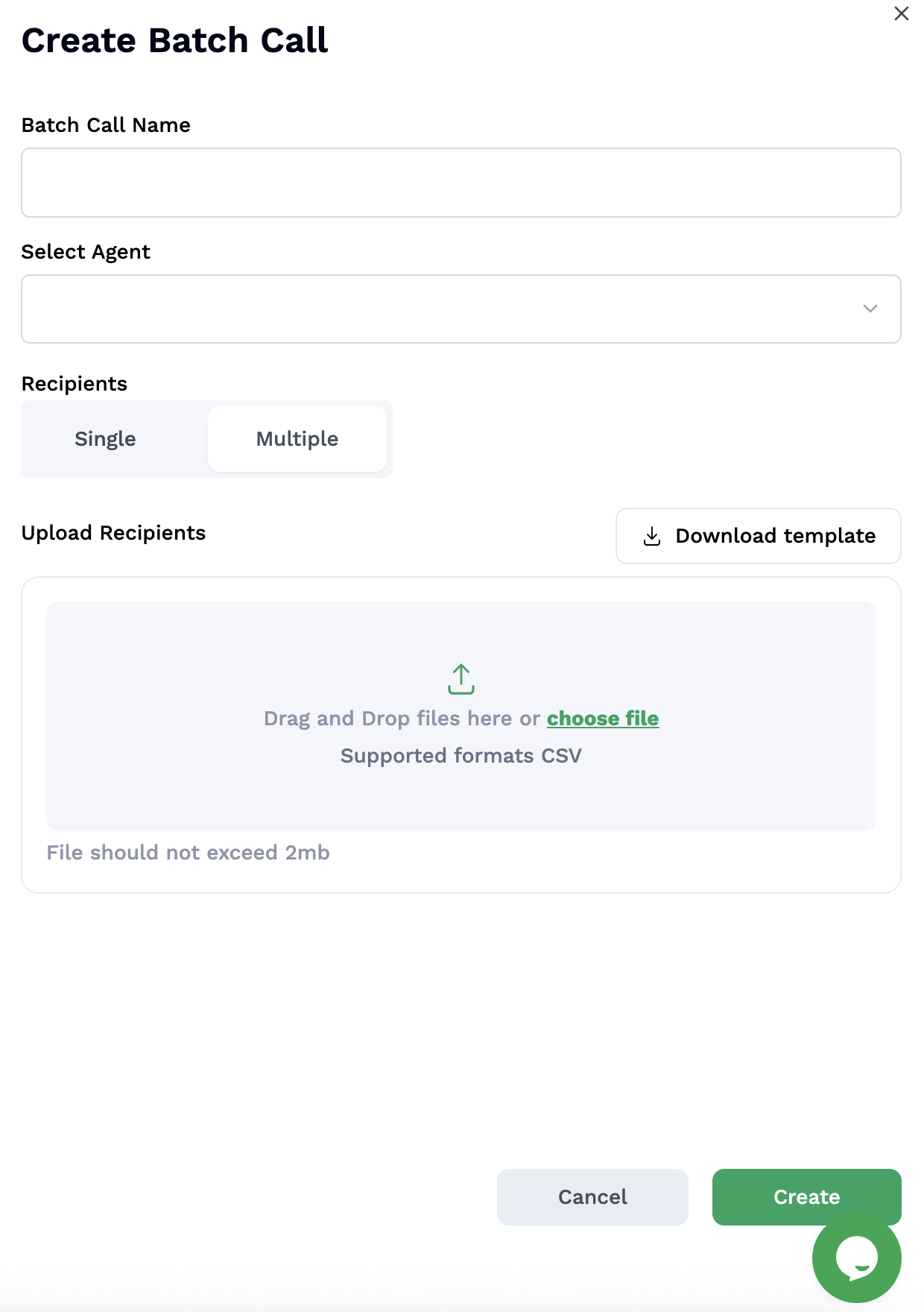
Multiple Batch Numbers
Configuring Call Parameters
- Define your target audience by uploading a contact list or selecting from existing contacts
- Format your contact data appropriately (ensure phone numbers are in the correct format) Note: A template for the contact list is available for download
Important Tips
- Test your outbound call agent with a small sample before large-scale deployment
- Ensure compliance with local calling regulations and hours
- Monitor initial calls to verify script effectiveness and adjust as needed
- Include clear company identification in your scripts
- Provide an opt-out mechanism for recipients
- Review call analytics to optimize performance