> ## Documentation Index
> Fetch the complete documentation index at: https://docs.ordibl.ai/llms.txt
> Use this file to discover all available pages before exploring further.
# Dashboard
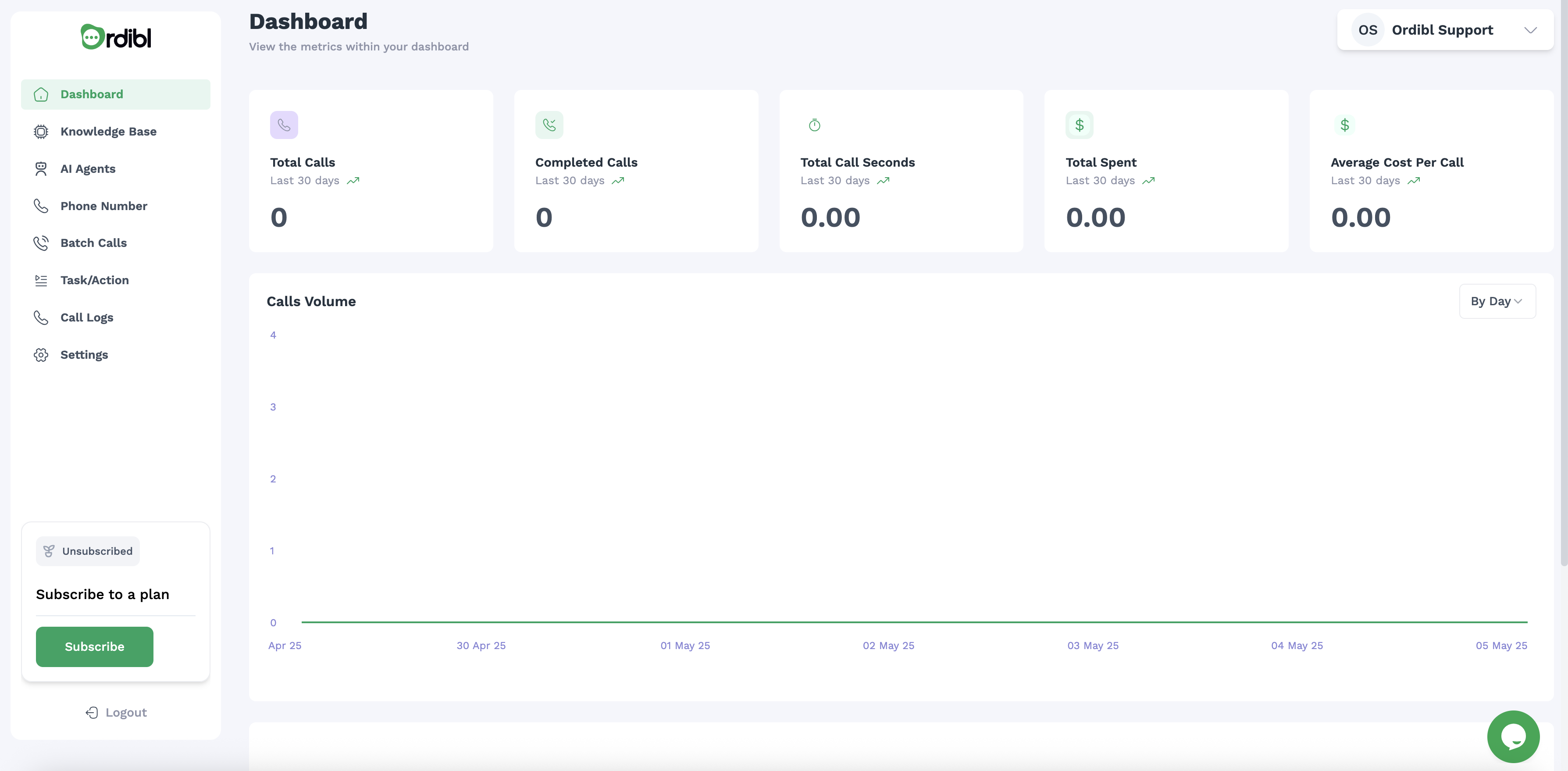
The Ordibl Dashboard serves as your command center for monitoring, analyzing, and managing all aspects of your AI-powered calling operations. This comprehensive guide will help you navigate and make the most of your dashboard's features.
 ## Accessing Your Dashboard
1. Log in to your [Ordibl account](https://app.ordibl.ai)
2. You'll automatically land on the Dashboard page
3. If you're in another section, click on "Dashboard" in the left navigation panel
## Dashboard Overview
Your Ordibl Dashboard is designed to provide a clear snapshot of your AI calling performance with key metrics and visualizations.
### Key Performance Metrics (Top Section)
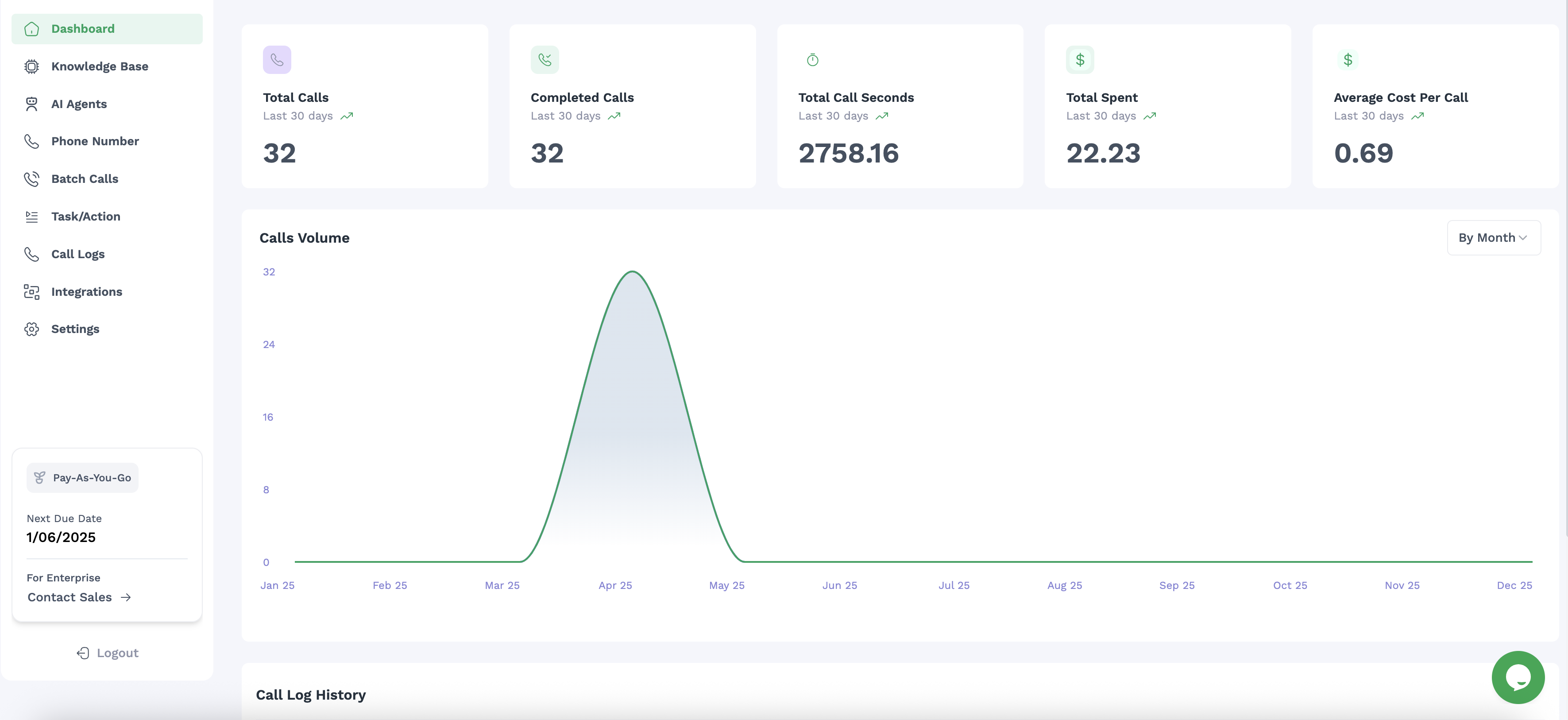
The dashboard displays five essential metrics for the last 30 days:
1. **Total Calls**: The number of all calls made or received (32 in the example)
2. **Completed Calls**: Successfully connected and finished calls (32 in the example)
3. **Total Call Seconds**: Cumulative duration of all calls (2758.16 seconds in the example)
4. **Total Spent**: Your total expenditure on calls (\$22.23 in the example)
5. **Average Cost Per Call**: The mean cost per call (\$0.69 in the example)
Each metric includes:
* Current value
* "Last 30 days" timeframe indicator
* Trend indicator showing increase/decrease
### Call Volume Graph (Middle Section)
The interactive call volume graph shows:
* Call distribution over time
* Y-axis showing number of calls (0-32 in the example)
* X-axis showing months (Jan-Dec)
* A bell curve showing call concentration (peaked in April-May in the example)
* Time period filter option ("By Month" dropdown in the top right)
## Accessing Your Dashboard
1. Log in to your [Ordibl account](https://app.ordibl.ai)
2. You'll automatically land on the Dashboard page
3. If you're in another section, click on "Dashboard" in the left navigation panel
## Dashboard Overview
Your Ordibl Dashboard is designed to provide a clear snapshot of your AI calling performance with key metrics and visualizations.
### Key Performance Metrics (Top Section)
The dashboard displays five essential metrics for the last 30 days:
1. **Total Calls**: The number of all calls made or received (32 in the example)
2. **Completed Calls**: Successfully connected and finished calls (32 in the example)
3. **Total Call Seconds**: Cumulative duration of all calls (2758.16 seconds in the example)
4. **Total Spent**: Your total expenditure on calls (\$22.23 in the example)
5. **Average Cost Per Call**: The mean cost per call (\$0.69 in the example)
Each metric includes:
* Current value
* "Last 30 days" timeframe indicator
* Trend indicator showing increase/decrease
### Call Volume Graph (Middle Section)
The interactive call volume graph shows:
* Call distribution over time
* Y-axis showing number of calls (0-32 in the example)
* X-axis showing months (Jan-Dec)
* A bell curve showing call concentration (peaked in April-May in the example)
* Time period filter option ("By Month" dropdown in the top right)
 ### Call Log History (Bottom Section)
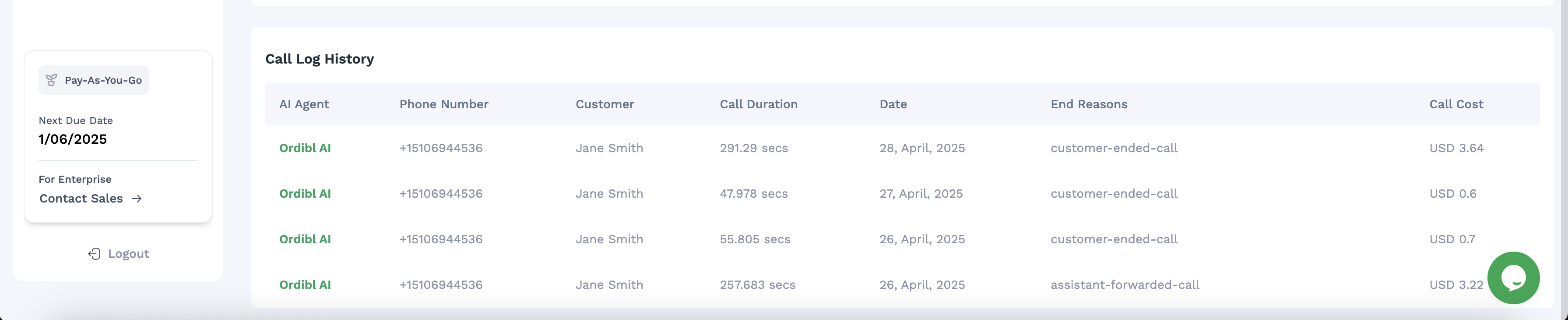
The detailed call history table includes:
* **AI Agent**: The name of the AI agent that handled the call
* **Phone Number**: The contact's phone number
* **Customer**: Customer name or identifier
* **Call Duration**: Length of each call in seconds
* **Date**: When the call occurred
* **End Reasons**: How the call concluded (customer-ended, assistant-forwarded)
* **Call Cost**: Individual cost for each call in USD
### Call Log History (Bottom Section)
The detailed call history table includes:
* **AI Agent**: The name of the AI agent that handled the call
* **Phone Number**: The contact's phone number
* **Customer**: Customer name or identifier
* **Call Duration**: Length of each call in seconds
* **Date**: When the call occurred
* **End Reasons**: How the call concluded (customer-ended, assistant-forwarded)
* **Call Cost**: Individual cost for each call in USD
 ## Navigation Menu (Left Sidebar)
The left sidebar provides access to all major sections:
* **Dashboard**: Overview of call performance and metrics (current page)
* **Knowledge Base**: Manage information sources for your AI
* **AI Agents**: Configure and manage your AI agents
* **Phone Number**: Manage your phone numbers
* **Batch Calls**: Schedule and manage bulk calling campaigns
* **Task/Action**: Configure tasks for your AI agents
* **Call Logs**: Detailed records of all calls
* **Integrations**: Connect with CRM and other systems
* **Settings**: Configure your account and preferences
## Navigation Menu (Left Sidebar)
The left sidebar provides access to all major sections:
* **Dashboard**: Overview of call performance and metrics (current page)
* **Knowledge Base**: Manage information sources for your AI
* **AI Agents**: Configure and manage your AI agents
* **Phone Number**: Manage your phone numbers
* **Batch Calls**: Schedule and manage bulk calling campaigns
* **Task/Action**: Configure tasks for your AI agents
* **Call Logs**: Detailed records of all calls
* **Integrations**: Connect with CRM and other systems
* **Settings**: Configure your account and preferences
\[At the top right corner]
* **User Profile**: Manage your account settings and preferences
## Account Information (Bottom Left)
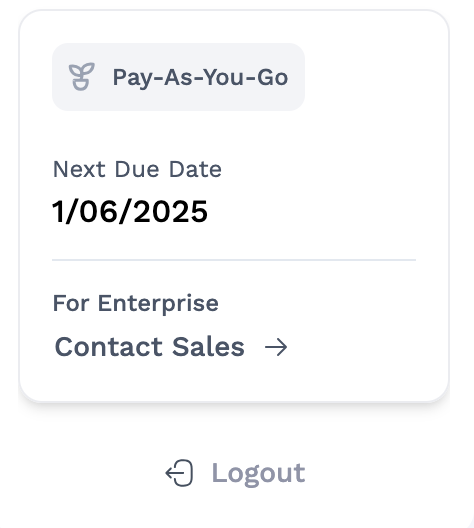
The bottom left section displays:
* **Pay-As-You-Go**: Your current billing plan
* **Next Due Date**: Your next billing date (1/06/2025)
* **For Enterprise**: Contact Sales link for upgrading
* **Logout**: Option to sign out
 ## Live Support
A chat bubble icon appears in the bottom right corner, providing instant access to support.
## Using Dashboard Data Effectively
* Use dashboard insights to determine when to add or adjust AI agents
* Plan knowledge base updates based on call performance
## Best Practices
* Check your dashboard regularly to spot trends early
* Use insights to refine your AI conversation flows
* Compare performance across different time periods
* Review specific call logs for quality assurance
By effectively using your Ordibl Dashboard, you can optimize your AI calling operations, control costs, and continuously improve customer interactions.
## Live Support
A chat bubble icon appears in the bottom right corner, providing instant access to support.
## Using Dashboard Data Effectively
* Use dashboard insights to determine when to add or adjust AI agents
* Plan knowledge base updates based on call performance
## Best Practices
* Check your dashboard regularly to spot trends early
* Use insights to refine your AI conversation flows
* Compare performance across different time periods
* Review specific call logs for quality assurance
By effectively using your Ordibl Dashboard, you can optimize your AI calling operations, control costs, and continuously improve customer interactions.