> ## Documentation Index
> Fetch the complete documentation index at: https://docs.ordibl.ai/llms.txt
> Use this file to discover all available pages before exploring further.
# AI agent
This guide will walk you through the process of configuring your AI voice agent in Ordibl to ensure it represents your brand effectively when handling calls.
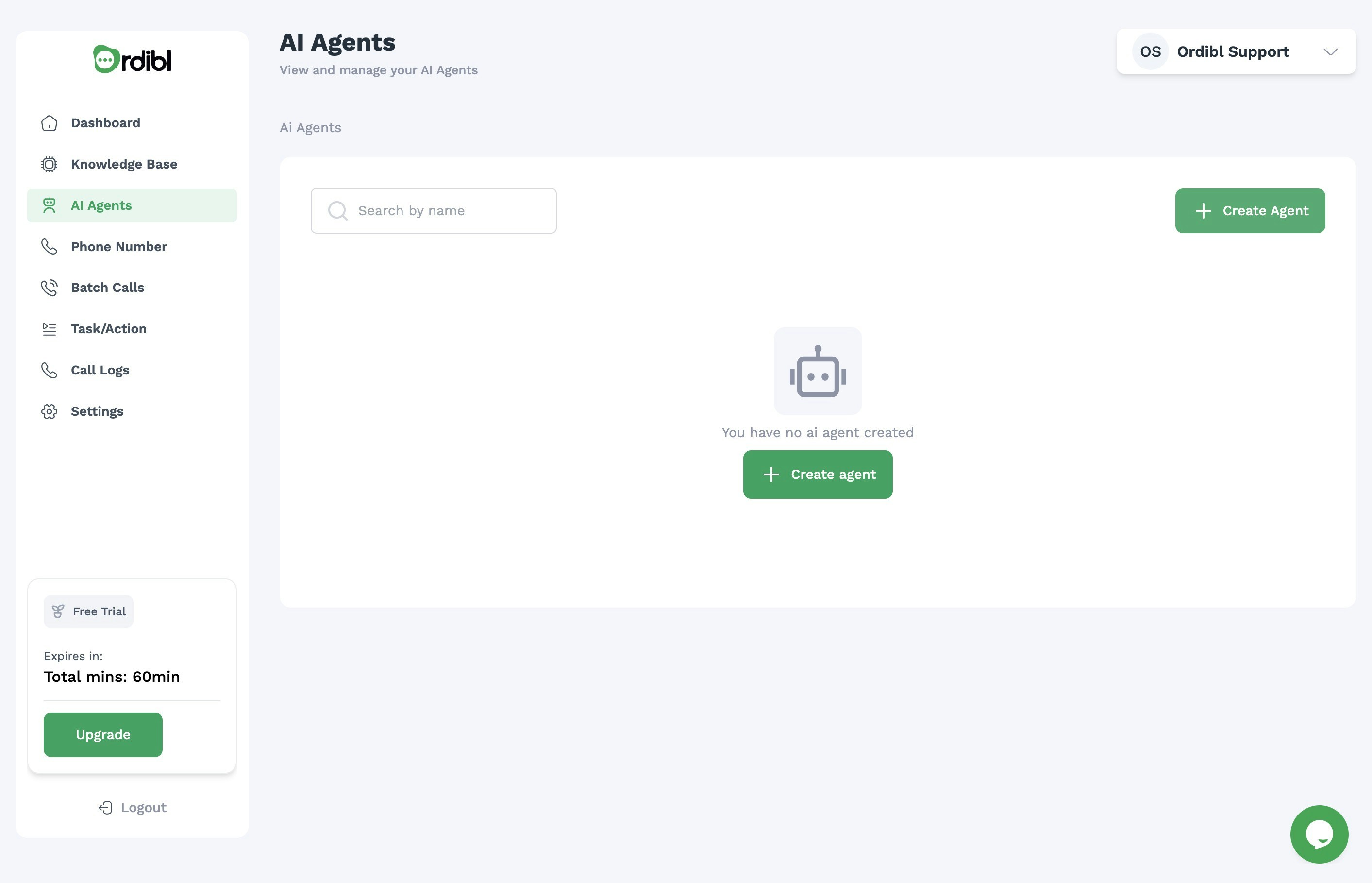
### Accessing the AI Agent Settings
* Log in to your [Ordibl Dashboard](https://app.ordibl.ai)
* Locate and click on the **"AI Agent"** option in the main navigation menu
* This will open the AI agent configuration interface
 ### Configuring Your AI Agent (Using Pre-Trained Models)
* Click on the "Create New Agent" button or select an existing agent to edit
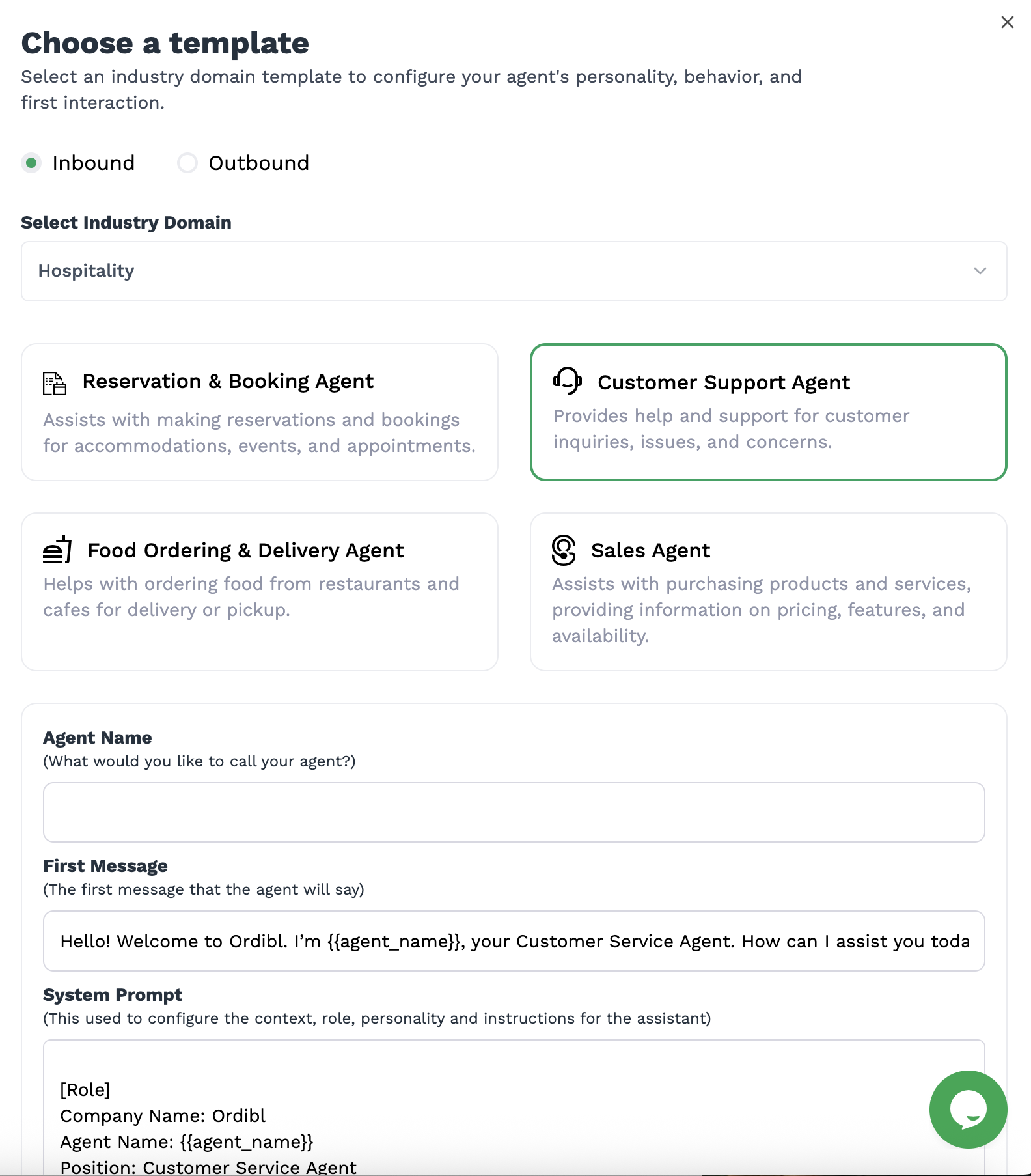
* Select Template from the Agent Personality Type
* Choose between Inbound or Outbound call types
* Select the Industry and AI agent type (e.g., Customer Service, Sales, etc.)
* Choose the AI agent's name (this will be how the agent introduces itself)
* Save the agent name and model type
* Define your agent's voice type (select from available voice options)
* Select the knowledge base for the agent (this is where the AI will pull information from)
* Save the AI voice agent configuration
### Configuring Your AI Agent (Using Pre-Trained Models)
* Click on the "Create New Agent" button or select an existing agent to edit
* Select Template from the Agent Personality Type
* Choose between Inbound or Outbound call types
* Select the Industry and AI agent type (e.g., Customer Service, Sales, etc.)
* Choose the AI agent's name (this will be how the agent introduces itself)
* Save the agent name and model type
* Define your agent's voice type (select from available voice options)
* Select the knowledge base for the agent (this is where the AI will pull information from)
* Save the AI voice agent configuration
 ### Configuring your AI agent (Using Custom Models)
* Click on the "Create New Agent" button or select an existing agent to edit
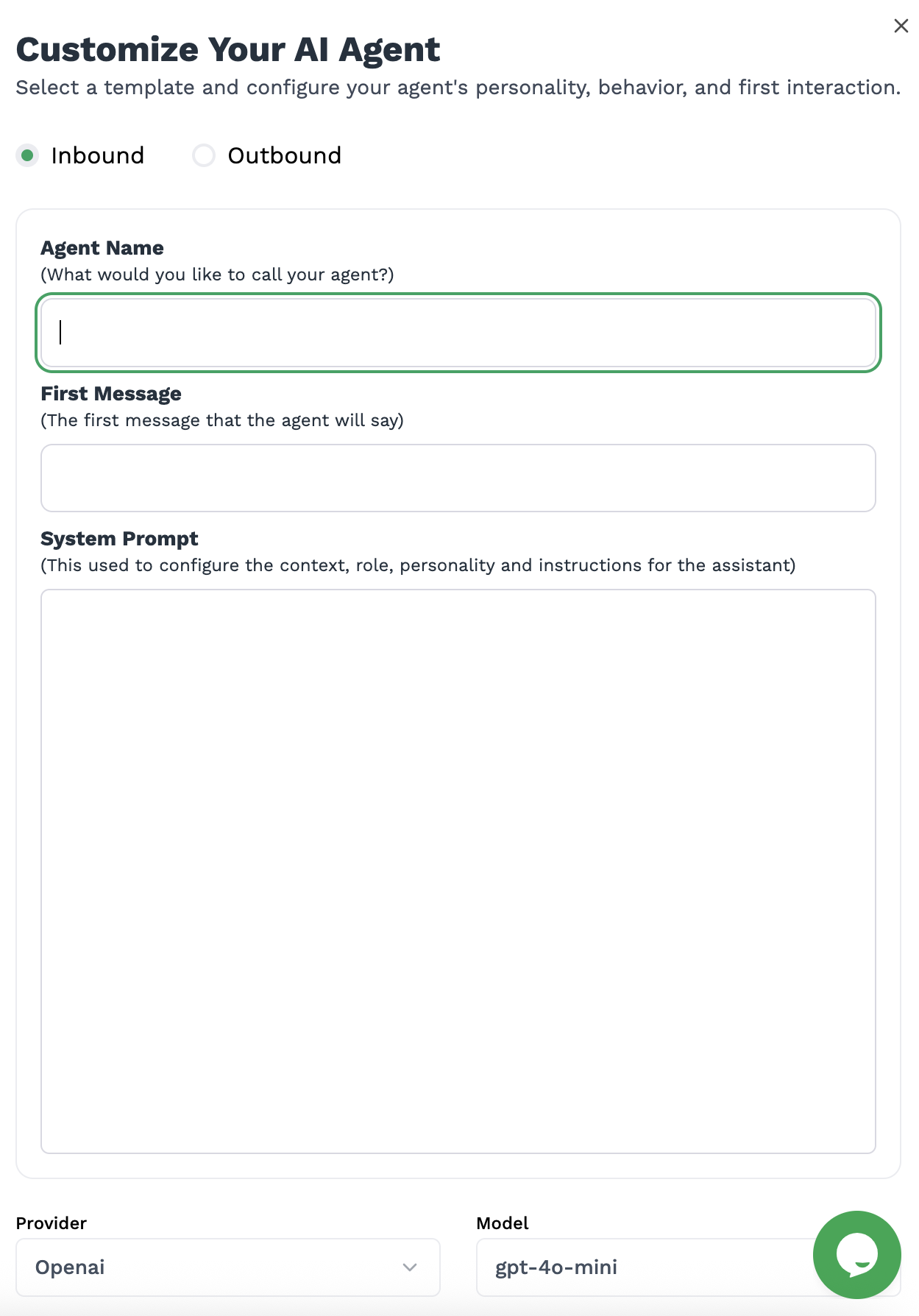
* Select "Custom" from the Agent Personality Type
* Choose between Inbound or Outbound call types
* Choose the AI agent's name (this will be how the agent introduces itself)
* Create the first message for the agent (this is the first thing the agent will say when it answers a call)
* Create the System prompt (this is the instruction that will guide the AI agent's behavior)
* Select the Provider and Model to use for the agent
* Optional: You can you use your own API key for the provider
* Set other parameters like temperature and max tokens
* Save the AI voice agent configuration
### Configuring your AI agent (Using Custom Models)
* Click on the "Create New Agent" button or select an existing agent to edit
* Select "Custom" from the Agent Personality Type
* Choose between Inbound or Outbound call types
* Choose the AI agent's name (this will be how the agent introduces itself)
* Create the first message for the agent (this is the first thing the agent will say when it answers a call)
* Create the System prompt (this is the instruction that will guide the AI agent's behavior)
* Select the Provider and Model to use for the agent
* Optional: You can you use your own API key for the provider
* Set other parameters like temperature and max tokens
* Save the AI voice agent configuration
 ## Important Tips
* Create a persona that aligns with your brand voice and values
* Provide clear guidelines for how the agent should handle different scenarios
* Test your agent with sample conversations before deploying
* Update your agent's knowledge regularly through the Knowledge Base feature
* Monitor your agent's performance and refine settings as needed
A well-configured AI agent will provide consistent, professional customer service that represents your brand effectively while handling routine inquiries efficiently.
## Important Tips
* Create a persona that aligns with your brand voice and values
* Provide clear guidelines for how the agent should handle different scenarios
* Test your agent with sample conversations before deploying
* Update your agent's knowledge regularly through the Knowledge Base feature
* Monitor your agent's performance and refine settings as needed
A well-configured AI agent will provide consistent, professional customer service that represents your brand effectively while handling routine inquiries efficiently.